Connecting the hardware
This chapter covers getting a Schrack Seconet Integral fire panel talking to Protequ. The tree is not discovered live — you import an Intmel XML export. Fields and addresses are on the configuration page. What the panel can and cannot do is in Notes. What appears in the event log is on the Events page.
How Protequ reaches it
Over an IP network, directly. There is no converter. The panel waits as a TCP
server on port 11113. Protequ opens that connection. Ping is not enough — the
port must be reachable from the Protequ host.
The panel has one master slot per Operation control system. A second client does not log into an occupied slot. The slot frees on logout or after the panel timeout.
A lost link shows in Protequ only after about 36 seconds (three probes of 12 s). That is how the panel supervises the connection, not an installation fault. The same wait applies after a password change.
After login, later traffic is not encrypted. Only the login is (the Key picks the cipher set). The site network must be trusted.
Before you start
A Schrack technician needs Integral Data Center and the project that will be loaded into the panel — saving it on disk is not enough.
- Protequ on Windows or Linux with the Schrack adapter selected (see In Protequ).
- The Protequ host can reach the panel (same VLAN, or a permitted path to TCP
11113). - The Protequ host clock is correct (NTP). On connect, every 5 minutes, and whenever the panel is more than a minute off, Protequ writes its clock to the panel. A wrong host clock is copied onto the panel.
- The site time zone. The zone is the Time zone field on the panel card
(
timezone, default Europe/Prague) — not the host clock. - The Intmel XML must come from this loaded project. The password is Management / External system user password (not the PIN, not the ordinary panel-user password). It is required in Protequ.
Fill in before you arrive:
Panel IP (NET / Ethernet):      ........................
Port:                           11113  (fixed)
Management / External system:   ........................
External system password:       ........................  (required)
Key on the panel:               Other manufacturer  (prefer; not SecuriFire)
IDC project / Intmel XML:       .........................xml
Two things that do not change:
| What | Value |
|---|---|
| XML | Intmel export from Integral Data Center (root <BMZ-Integral Version="1.0.0">). Do not use another XML format. |
| Key | Other manufacturer on the panel, OtherManufacturer in Protequ. Use Standard only when that is the panel Key. SecuriFire (IDC may show another name) is a different protocol — do not use it. |
On the equipment
A Schrack technician does this in Integral Data Center / Configurator. Without these steps Protequ will not connect, even when the IP address answers ping. One screenshot per screen.
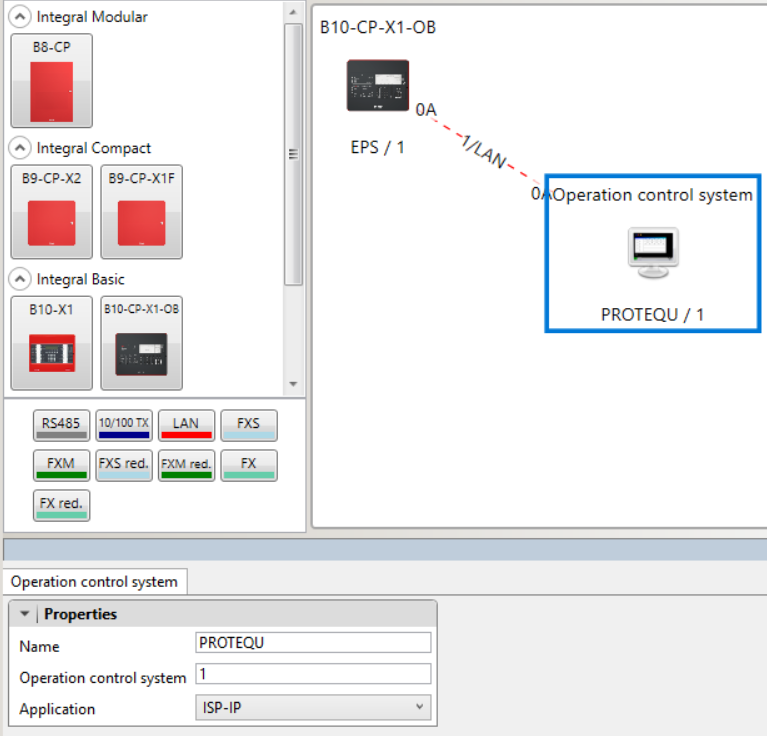
- Operation control system on the LAN. In Hardware, the Operation
control system box (for example
PROTEQU) sits on a LAN from the panel. Application ISP-IP. Turn on Remote access on this object: the external system may send commands and the local keypad stays in service. Without it Protequ usually logs in and the panel then refuses commands.
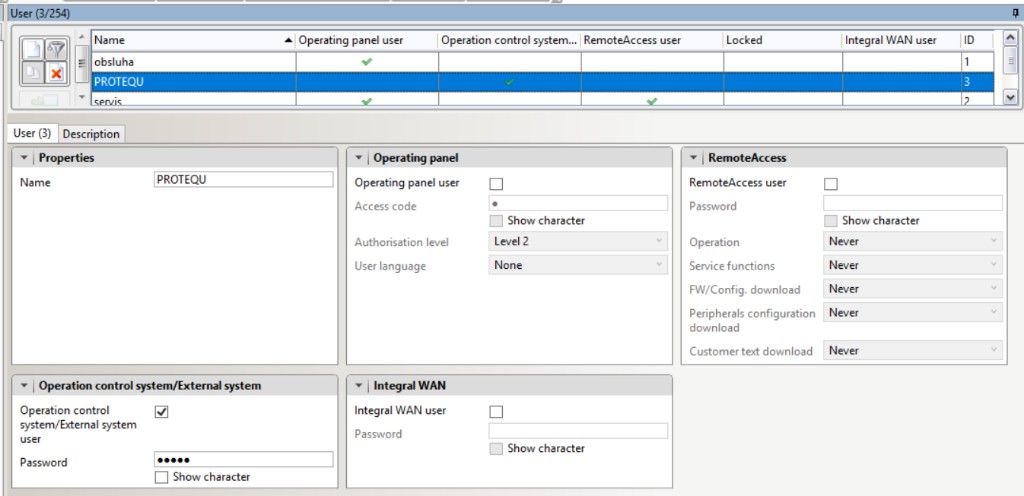
- User. Logical → Users. The management user (for example
PROTEQU) is an Operation control system / External system user. Put the password in that block — not the PIN, and not a RemoteAccess user. In the authorisation macro give that user the commands you will run from Protequ: reset, mute buzzer, mute/reactivate sounder, confirm alarm (T1 → T2), day/night, bypass, revision (test) and outputs. A missing right shows up later asErrOpmac.
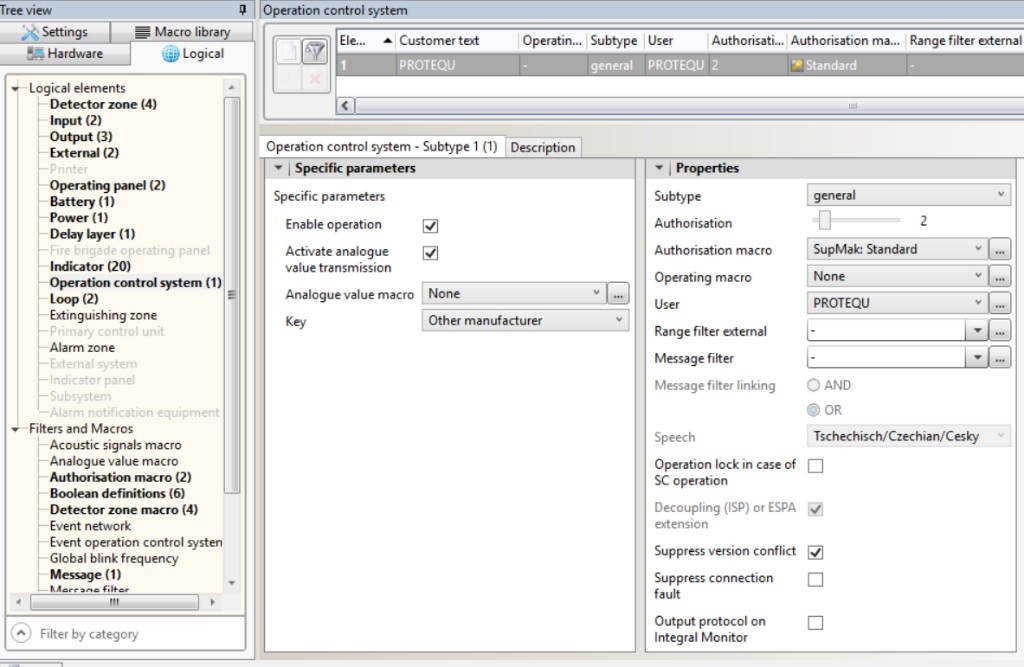
- Key and Suppress version conflict. Same Operation control system.
Key = Other manufacturer. Standard only if that is what the panel
Key is. Leave SecuriFire alone. Tick Suppress version conflict on this
screen. Protequ speaks ISP-IP 4.1.1; an older IRP (often ISP-IP 4.0) would
otherwise refuse the link or raise a version-conflict / control-system
fault. The tick is a safeguard — it does not change the protocol. The
Protequ
key_setmust match.
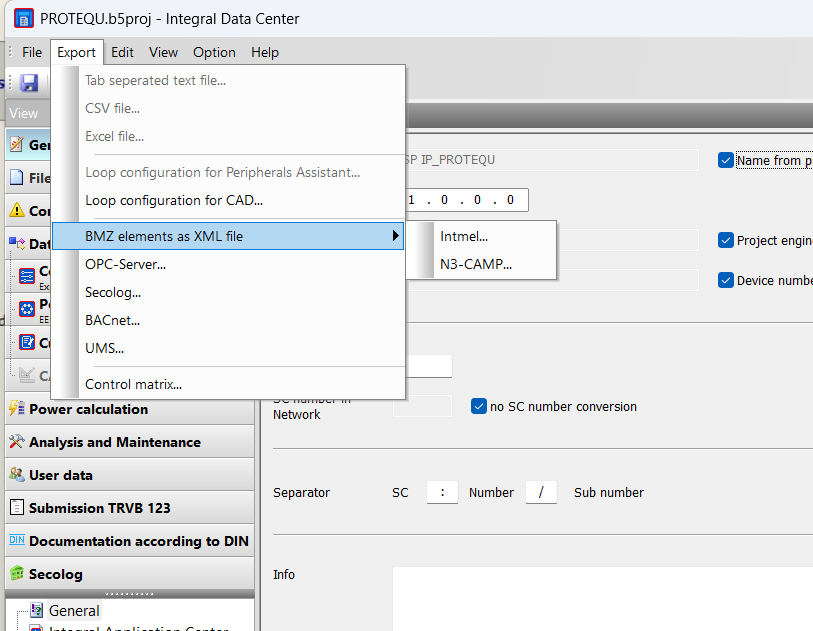
- Load the project, then export Intmel. Load into the panel; do not only
save. Inspector must not report “working file is newer than the exported
file”. Then in Integral Data Center: Export → BMZ elements as XML file →
Intmel. The file must have root
<BMZ-Integral Version="1.0.0">, an<SC Name="…">that matches the control unit, and every group, detector, input and output the operator sees on the panel.
In Protequ
Install the adapter first, then add the panel. The panel steps are the same on Windows and Linux.
Windows. Run the Protequ installer and select Schrack (fire) in the adapter catalog. The adapter runs as a service. You do not install Docker or a separate .NET runtime.
Linux. On Ubuntu 24.04 or 22.04 (x86_64) download
pq-installer-online-v…-linux-x86_64.tar.gz from repo.protequ.com, unpack it
and run sudo ./run.sh. The installer installs Docker Engine if it is missing.
In the catalog select Schrack (fire) — that pulls pqschrack and starts it
as a container. Adding the adapter later means running the installer again.
Confirm the port, not only ping:
TcpTestSucceeded : True means continue. Timeout or refused is VLAN, firewall,
a wrong IP, a missing NET module, or the Operation control system with ISP-IP
not loaded into the panel.
If the panel card is Stopped after a host restart, restart only the adapter in the UI (Extra adapter), not the whole server. Do not restart the adapter while waiting after a password change.
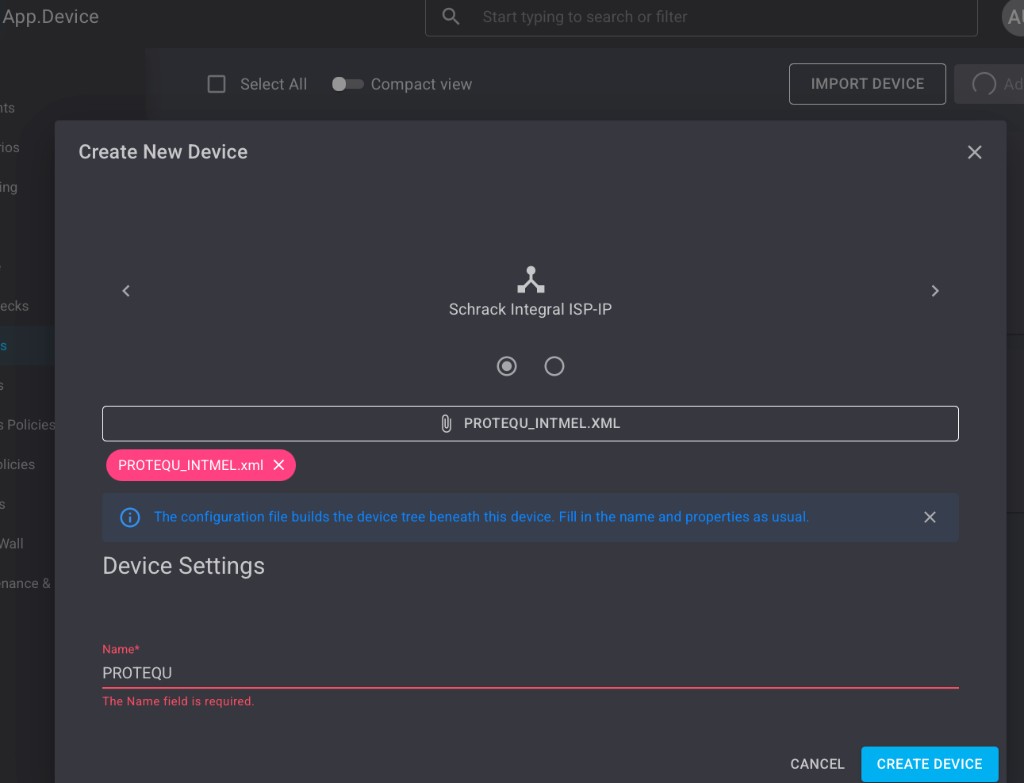
Devices → Add device. Adapter Schrack, type Integral Fire Panel,
name it, Load configuration file (the Intmel XML). On the panel card fill
IP, port 11113, user and password (required). Key set
OtherManufacturer (or Standard when the panel Key is Standard). Address
32766 (local main control unit). One card is one TCP session. A Part
Central Ring (up to 16 SCU) is one Protequ panel; do not add a device per
SCU. A second panel is only another Integral with its own TCP. Outside
Europe/Prague set Time zone as well. Wait until the card is no longer
Stopped and Live audit shows a login as that user.
| You set on the equipment | You enter in Protequ |
|---|---|
| NET / Ethernet IP | IP address |
| TCP 11113 | Port (fixed) |
| Management / External system user | Username |
| External system password | Password (required) |
| Key Other manufacturer (or Standard) | key_set OtherManufacturer (or Standard) |
| Local main control unit | Address 32766 |
| Site time zone | Time zone on the panel card |
Changing the password later
- In IDC change External system user password (not the PIN, not Key) and load the project into the panel.
- Type the same new value on the Protequ panel card.
- Wait about 36 seconds. The adapter logs out and in by itself. Nothing seems to happen while the panel still holds the old slot.
Do not restart Docker or the adapter service. A second TCP into the occupied slot looks like a link fault on the panel while the Protequ card stays green. Do not change Key — that is the login cipher set, not the password.
Site extension — new Intmel
When groups or detectors are added on site, do not Add device again. That creates a second panel and a second session.
- Load the project into the panel and export a new Intmel file.
- Devices → Import devices → Update existing and pick the panel already in the tree.
- The XML refreshes groups and detectors. It does not contain IP address, username or password — those three fields stay as typed on the card.
Addresses after import (address = Intmel No − 1; detector SubNo is not
shifted):
| Element | On the panel / in XML | In Protequ (address) |
|---|---|---|
| Group, input, output | 1, 2, 26… | one less: 0, 1, 25… |
| Detector (SubNo) | 5, 17… | the same number, not shifted |
The wrong shift silently drives the neighbouring element.
Inputs vs outputs. An output (relay or sounder) has Activate / Deactivate. An input or EXT is a contact on the terminals — Protequ cannot close it, only see it, bypass it and put it in test.
Confirm it works
- The panel is connected. The tree shows the groups and detectors from the XML.
- Raise a harmless condition (open door, a known fault, a revision). The state appears on the correct element, not as an unresolved device.
- A reset on the panel or from Protequ clears it.
- Protequ and panel clocks differ by less than one minute.
- Unplug Ethernet: offline within about 40 seconds; after reconnect the states come back without a restart.
Acceptance tables (rows 1–52, English) are on Notes. The Czech site pack with the same tables and the handover form lives with the adapter source (not in this published bundle).
If it does not connect
| What you see | What to do |
|---|---|
| Port 11113 does not answer | VLAN, firewall, wrong IP, missing NET, or the Operation control system with ISP-IP not loaded |
| Login refused / interface busy | Key Other manufacturer and Protequ OtherManufacturer; password is the External system field; no second client in the slot |
| Version conflict / control-system fault | Tick Suppress version conflict on the Operation control system and load the project |
| Login works, commands refused or ignored | Remote access on the Operation control system is off. ErrOpmac is a missing right in the authorisation macro |
| Link is up, tree is empty | The Intmel XML is missing |
device.unresolved |
The element is not in the XML. Export again and Import → Update existing |
| Clocks off by a whole hour | Time zone on the panel card ≠ the site time zone |
| Mute buzzer does nothing before general alarm | Expected — it works only after general alarm |
Panel refuses a command (ErrOpmac) |
The External system user in IDC does not have that right in the authorisation macro (reset, mute, sounders, T2, day/night, bypass, revision, outputs). This is not the keypad PIN. |
| After you stop the adapter it will not reconnect at once | By design. The panel's master slot is freed at once (CancelLink), but the adapter keeps off the wire for ~36 s before its next attempt so the panel has released the interface. Same after a password change |
| Inspector: working file is newer | The project was saved, not loaded into the panel |